做成之后就
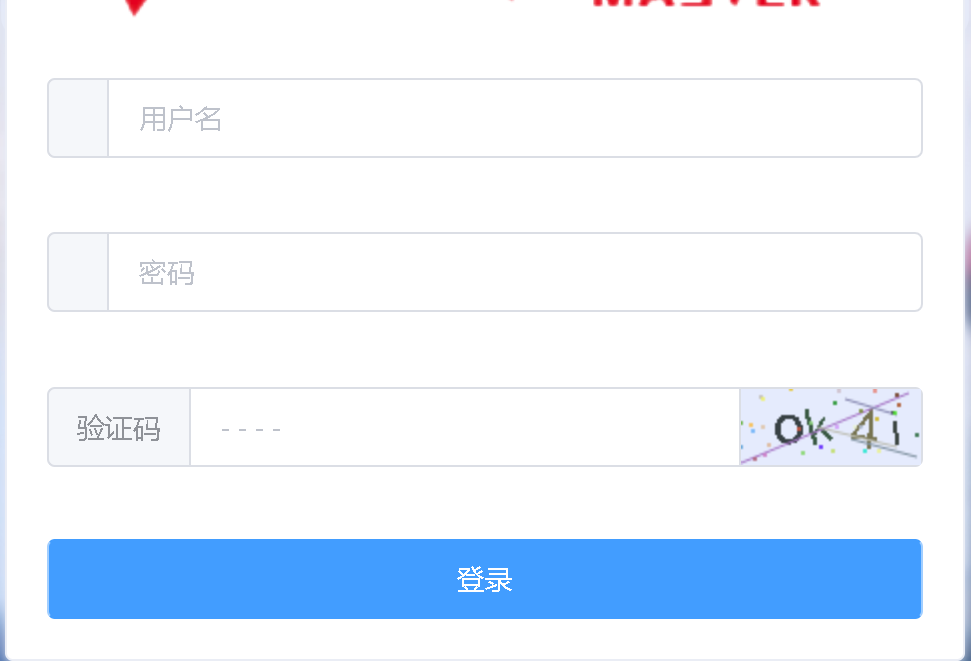
是这个样子
接下来上代码
创建一个组件。显示验证码图片
<template>
 <div class="s-canvas">
 <canvas id="s-canvas" :width="contentWidth" :height="contentHeight"></canvas>
 </div>
</template>
<script>
export default{
 name: 'SIdentify',
 props: {
 identifyCode: { // 默认注册码
 type: String,
 default: '1234'
 },
 fontSizeMin: { // 字体最小值
 type: Number,
 default: 25
 },
 fontSizeMax: { // 字体最大值
 type: Number,
 default: 35
 },
 backgroundColorMin: { // 验证码图片背景色最小值
 type: Number,
 default: 200
 },
 backgroundColorMax: { // 验证码图片背景色最大值
 type: Number,
 default: 220
 },
 dotColorMin: { // 背景干扰点最小值
 type: Number,
 default: 60
 },
 dotColorMax: { // 背景干扰点最大值
 type: Number,
 default: 120
 },
 contentWidth: { // 容器宽度
 type: Number,
 default: 90
 },
 contentHeight: { // 容器高度
 type: Number,
 default: 38
 }
 },
 methods: {
 // 生成一个随机数
 randomNum (min, max) {
 return Math.floor(Math.random() * (max - min) + min)
 },

 // 生成一个随机的颜色
 randomColor (min, max) {
 let r = this.randomNum(min, max)
 let g = this.randomNum(min, max)
 let b = this.randomNum(min, max)
 return 'rgb(' + r + ',' + g + ',' + b + ')'
 },

 drawPic () {
 let canvas = document.getElementById('s-canvas')
 let ctx = canvas.getContext('2d')
 ctx.textBaseline = 'bottom'
 // 绘制背景
 ctx.fillStyle = '#e6ecfd'
 ctx.fillRect(0, 0, this.contentWidth, this.contentHeight)
 // 绘制文字
 for (let i = 0; i < this.identifyCode.length; i++) {
 this.drawText(ctx, this.identifyCode[i], i)
 }
 this.drawLine(ctx)
 this.drawDot(ctx)
 },

 drawText (ctx, txt, i) {
 ctx.fillStyle = this.randomColor(50, 160) // 随机生成字体颜色
 ctx.font = this.randomNum(this.fontSizeMin, this.fontSizeMax) + 'px SimHei' // 随机生成字体大小
 let x = (i + 1) * (this.contentWidth / (this.identifyCode.length + 1))
 let y = this.randomNum(this.fontSizeMax, this.contentHeight - 5)
 var deg = this.randomNum(-30, 30)
 // 修改坐标原点和旋转角度
 ctx.translate(x, y)
 ctx.rotate(deg * Math.PI / 180)
 ctx.fillText(txt, 0, 0)
 // 恢复坐标原点和旋转角度
 ctx.rotate(-deg * Math.PI / 180)
 ctx.translate(-x, -y)
 },

 drawLine (ctx) {
 // 绘制干扰线
 for (let i = 0; i < 4; i++) {
 ctx.strokeStyle = this.randomColor(100, 200)
 ctx.beginPath()
 ctx.moveTo(this.randomNum(0, this.contentWidth), this.randomNum(0, this.contentHeight))
 ctx.lineTo(this.randomNum(0, this.contentWidth), this.randomNum(0, this.contentHeight))
 ctx.stroke()
 }
 },

 drawDot (ctx) {
 // 绘制干扰点
 for (let i = 0; i < 30; i++) {
 ctx.fillStyle = this.randomColor(0, 255)
 ctx.beginPath()
 ctx.arc(this.randomNum(0, this.contentWidth), this.randomNum(0, this.contentHeight), 1, 0, 2 * Math.PI)
 ctx.fill()
 }
 }
 },
 watch: {
 identifyCode () {
 this.drawPic()
 }
 },
 mounted () {
 this.drawPic()
 }
}
</script>
在登录页面中 验证码输输入框
<el-form-item prop="code">
 <el-input type="text" v-model="formLogin.code" placeholder="- - - -">
 <template slot="prepend">验证码</template>
 <template slot="append">
 <div class="login-code" @click="refreshCode">
 <Identify :identifyCode="identifyCode"></Identify>
 </div>
 </template>
 </el-input>
 </el-form-item>
登录按钮
<el-button-group>
 <el-button style="width:100%" @click="submit" type="primary">登录</el-button>
 </el-button-group>
引入之前的组件(在例子中它叫identify)
import Identify from './identify'在登录组件中引入Identify (这是验证码组件)这一部分略
在data中
// 表单
 formLogin: {
 username: "",
 password: "",
 code: ""
 },
 identifyCodes: '1234567890abcdefjhijklinopqrsduvwxyz',
 identifyCode: '',
 // 校验
 rules: {
 username: [
 { required: true, message: "请输入用户名", trigger: "blur" }
 ],
 password: [{ required: true, message: "请输入密码", trigger: "blur" }],
 code: [{ required: true, message: "请输入验证码", trigger: "blur" }]
 }
在mounted中
mounted () {
 // 初始化验证码
 this.identifyCode = ''
 this.makeCode(this.identifyCodes, 4)
 },
在method中
 // 引入验证接口
...mapActions("d2admin/account", ["login"]),
 // 重置验证码
 refreshCode () {
 this.identifyCode = ''
 this.makeCode(this.identifyCodes, 4)
 },
 makeCode (o, l) {
 for (let i = 0; i < l; i++) {
 this.identifyCode += this.identifyCodes[this.randomNum(0, this.identifyCodes.length)]
 }
 },
 randomNum (min, max) {
 return Math.floor(Math.random() * (max - min) + min)
 },
 /**
 * @description 提交表单
 */
 // 提交登录信息
 submit() {
 if (this.formLogin.code.toLowerCase() !== this.identifyCode.toLowerCase()) {
 this.$message.error('请填写正确验证码')
 this.refreshCode()
 return
 }
 this.$refs.loginForm.validate(valid => {
 if (valid) {
 // 登录
 // 注意 这里的演示没有传验证码
 // 具体需要传递的数据请自行修改代码
 this.login({
 vm: this,
 username: this.formLogin.username,
 password: this.formLogin.password
 });
 } else {
 // 登录表单校验失败
 this.$message.error("表单校验失败");
 }
 });
 }
以上就是本文的全部内容,希望对大家的学习有所帮助,也希望大家多多支持脚本之家。